
CD Label Templates: Pro Designs for Your Music
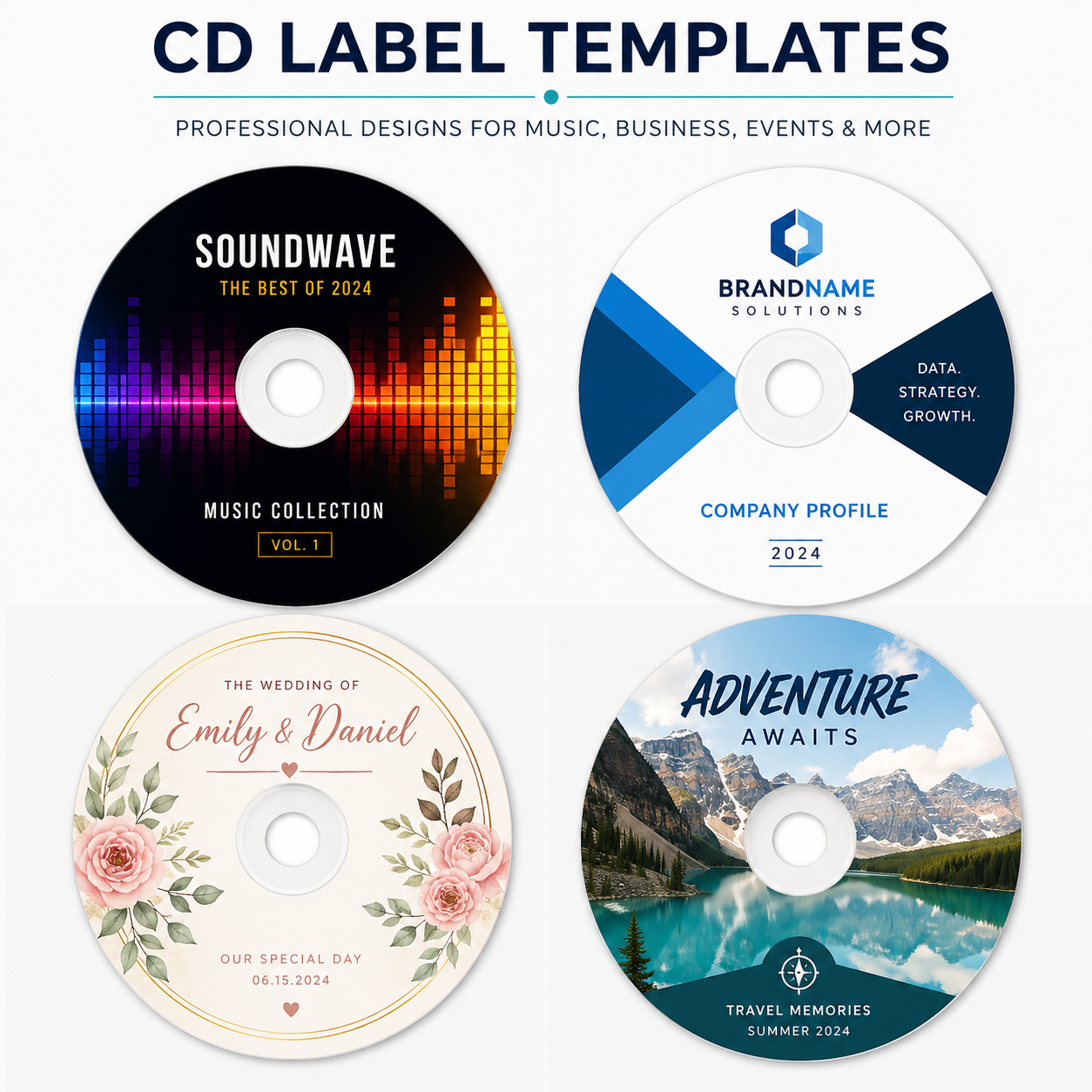
Your music is finished. The mixes are approved, the master sounds right, and now the part nobody talks about enough lands on your desk. The disc face, the tray card, the insert, the file export, the print specs, the center hole, the bleed.
That’s where a lot of independent releases go sideways.
Most articles about cd label templates stop at “download a free file and add your artwork.” That advice works for home printing. It doesn’t reliably work when you need clean, repeatable results for short-run duplication. Files that look fine on your screen can still fail when they hit production. In printing forums, 40-50% of indie projects fail first runs due to improper template prep, including missed bleed requirements, according to CDROM2GO template guidance.
A professional-looking disc isn’t about fancy effects. It’s about building the file correctly from the start, then making design choices that survive real printing. If you’re an artist, DJ, church media team, or indie label ordering a short run, the difference between “pretty good” and “ready to duplicate” comes down to a handful of technical decisions that generic tutorials usually skip.
Beyond the Music Professional CD Artwork Starts Here
A lot of musicians hit the same wall. You’ve done the creative work already, but packaging feels like a separate trade. In a way, it is.
The confusing part is that many cd label templates were created for an earlier workflow. They were built around home printers, sticker sheets, and office software. Those templates can still be useful, but they don’t automatically prepare your art for a duplication house.
What causes trouble is simple. A template may show the disc shape, but it often doesn’t teach you how to handle bleed, safe zones, color mode, export settings, or the practical difference between sticker labels and direct-to-disc printing. That gap is why so many first submissions need revisions.
Practical rule: A template is only a starting point. Production-ready artwork needs setup discipline, not just a nice layout.
If you’re ordering short runs, you need a file that prints consistently from the first disc to the last. That means treating the label as print production, not just screen design. Sharp type, proper image resolution, a safe center area, and a file format the press can interpret cleanly all matter more than one extra texture overlay or glow effect.
That’s good news, because the process is learnable. Once you understand how a proper disc file is built, the work gets much easier. You stop guessing. You stop nudging artwork around by eye. You stop finding out too late that the song title sits half inside the hub.
Finding the Perfect CD Label Template
The internet gives you too many choices, not too few. That’s why people grab the first free download they see and hope it behaves.
The market for cd label templates is broad. OnlineLabels notes that AudioLabel offers over 200 templates, Adobe Stock indexes thousands of vectors, and some communities maintain over 3,000 records for specialized uses like church sermon CD labeling. That volume is useful, but it also means you need a filter.

Start with the print method
Before you compare file types, decide how the disc will be printed.
If you’re designing for a peel-and-stick label sheet, your template needs to match that exact stock. If you’re designing for direct-to-disc output, you need artwork built around the printable area of the disc itself. People mix these up all the time, and the geometry is not always interchangeable.
A quick reality check helps:
- Sticker label workflow: Good for home experimentation, mockups, and some legacy setups.
- Direct-to-disc workflow: Better when you want cleaner production handling and fewer issues related to label application.
- Packaging match workflow: Necessary when you want the disc art to visually connect with your insert, cover, or wallet.
Choose the file format that matches your skill level
Template quality matters, but software compatibility matters just as much.
- PDF templates: Good for reference, measuring, and placing guides. Less flexible for layered editing unless you rebuild the artwork in your design app.
- PSD templates: Useful if you work in Photoshop and want editable guides, layers, masks, and placed artwork.
- AI or EPS templates: Better for vector-heavy layouts, logos, and precise typography.
- DOC templates: Fine for office-style label placement, but usually not my first choice for professional disc art.
- Canva-style editable files: Convenient for simple layouts, but you still need to confirm the final export is suitable for print.
Don’t pick the “best” template. Pick the one that matches the exact disc format, your software, and your final print method.
Free vs paid templates
Free templates are often enough if the geometry is correct and the guides are clear. Paid templates can save time when they include better layer organization, packaging variants, or more polished starter layouts.
What doesn’t work is downloading a beautiful mockup file and mistaking it for production art. Mockups sell the design. Production templates build the file.
Choosing Your Design Software and Setting Up Your Canvas
Design software doesn’t make the artwork professional by itself. Setup does. I’ve seen strong-looking art built in basic tools print well, and flashy files from expensive apps fail because the document was wrong from the start.
Pick the software for the job
Some tools are easier for beginners. Others give you tighter control over type, vectors, color, and export settings.
| Software | Cost | Best For | Key Feature for CD Design |
|---|---|---|---|
| Adobe Photoshop | Paid | Raster-heavy disc art and photo-based covers | Layer masks, guide control, PSD workflow |
| Adobe Illustrator | Paid | Logo-driven layouts and vector typography | Precise paths, scalable vector art |
| GIMP | Free | Budget-conscious image editing | Layered bitmap editing |
| Inkscape | Free | Vector-based label layouts | Clean logo and type handling |
| Canva | Freemium | Simple layouts and quick social-style compositions | Easy drag-and-drop editing |
| Affinity Designer | Paid | Designers who want vector and raster flexibility | Strong layout control without subscription |
What every canvas needs
No matter what app you use, the setup principles stay the same.
Your document should match the disc template exactly. That means using the provided dimensions instead of guessing. For print, keep your placed images high enough quality to hold detail, and build with print in mind instead of screen color.
Use this baseline:
- Resolution: Set artwork to 300 DPI minimum for print-ready output.
- Color mode: Build for CMYK when the final file is intended for printing.
- Guides: Keep visible guides for trim area, printable area, and center hub safety.
- Typography: Use type sizes that remain readable on a small circular surface.
A practical setup routine
When I prep a disc file, I keep the process boring on purpose. Boring is reliable.
- Open the template first and lock the guide layer.
- Build the artwork above it on separate layers for background, text, and logos.
- Mark the center hub mentally as untouchable space unless the template clearly supports print there.
- Check the outer edge early so background art extends cleanly to the trim area.
- Test readability at actual size. Tiny type can look fine while zoomed in and fail the moment it prints.
A simple design built cleanly will outperform an overworked design built sloppily.
Screen-pretty and print-ready are not the same thing. If you only judge your file at 200% zoom on a monitor, you’re not really proofing it.
Designing a Print-Ready CD Label That Wows
A good disc label does two jobs at once. It looks like part of the release, and it obeys the physical limits of the format.
That second part is where most avoidable mistakes happen.

Build around guides, not guesses
A solid Photoshop workflow starts with a real label template. One method uses the WorldLabel WL-5025 PDF template, which provides guides for 4.65-inch full-face CD/DVD labels arranged 2-up per sheet. The same workflow emphasizes keeping the central black negative circle guide in place and respecting the hub safety area. The reference also notes an outer diameter of 117.5mm and an inner print-safe area of 108mm, with image assets prepared at 300 DPI minimum and exported as PDF/X-1a in the final stage, as described in the WL-5025 Photoshop walkthrough.
That matters because circular designs fool people. Designers naturally center things by eye, but the hub area changes what “centered” should feel like. If you put song titles or a logo too close to the inner ring, the disc can look cramped even before you get into technical risk.
A few practical habits help:
- Let backgrounds do the stretching. Photos, textures, and color fields can extend farther than text.
- Keep names and titles in the stable zone. The closer important words get to the hub, the more fragile the layout becomes.
- Use contrast aggressively. Disc faces are small. Mid-tone text over busy art almost always loses.
Make readability part of the aesthetic
On-disc art isn’t a poster. It has less room, a hole in the middle, and a curved reading path. That means typography has to work harder.
The Photoshop methodology above recommends 8-12pt bold sans-serif for album title and artist, with 6-8pt for tracklist text in cases where a track list is placed on the disc face. Those aren’t style rules. They’re practical ranges that tend to survive print and viewing distance.
Here’s what usually works best:
- One dominant text element: album title, artist name, or series name.
- One supporting layer: subtitle, volume number, or catalog cue.
- Minimal fine print on the disc itself: move long credits to the insert when possible.
If text feels slightly too large on screen, it’s often just right on the finished disc.
Match the disc and the package on purpose
A release feels more professional when the label and package belong to the same visual system. That doesn’t mean duplicating the exact same composition. It means sharing image logic, type, and color choices.
A RonyaSoft workflow for matching a disc label and jewel case cover uses the same high-resolution image across both pieces, with the label cropped to the center and the cover using an adjoining segment for a “succession effect.” That method also recommends keeping image assets at 300 DPI, excluding the 23mm hub area from critical content, and using mirrored visual details like repeated fonts and shadows. The same reference describes aligning overlapping imagery and style cues across the disc and cover in RonyaSoft’s design continuity article.
Three design moves that hold up in production
Use one image family
If your cover uses gritty monochrome photography, the disc shouldn’t suddenly switch to neon gradients unless that contrast is intentional. Reuse textures, color temperature, and tonal range.
Simplify the disc face
The disc doesn’t need every design element from the front cover. Usually it needs fewer. One strong crop, one clear title treatment, and clean brand consistency go further than trying to squeeze the whole package onto a circle.
Design with the physical object in mind
A jewel case insert, a wallet, and a disc face aren’t the same canvas. The best cd label templates help you map one identity across several surfaces without forcing the same layout onto all of them.
Common CD Design Mistakes and How to Avoid Them
Most bad disc files don’t fail because the designer lacked taste. They fail because the file was built using assumptions from the home-printer era.

The template is old, but your workflow isn’t
CD label templates grew alongside home printing in the late 1990s and early 2000s, when brands like Avery and Neato standardized layouts for office printers and peel-and-stick sheets. That history matters because many of those free files still circulate today, even though they weren’t built around modern duplication requirements like bleed handling and print color workflows, as explained in Avery’s CD and DVD label overview.
That doesn’t make those templates useless. It means you need to know what problem they were originally designed to solve.
Mistakes I see over and over
- Using web images pulled from social media: They may look acceptable on your phone and fall apart in print.
- Treating the center hub like normal canvas: Critical text or logos get crowded, clipped, or visually distorted.
- Designing in RGB and hoping for the best: Print color often shifts when the file wasn’t built for output.
- Packing too much onto the disc face: Song titles, producer credits, social handles, legal copy, and logos all compete for a tiny surface.
- Using sticker-label assumptions for direct print jobs: The printable area and handling realities are different.
What to do instead
Respect the disc as a small object
Think like a package designer, not just a screen designer. The disc will be held at arm’s length, tilted under light, and viewed quickly. Big shapes and strong contrast read better than detail-heavy compositions.
Let the insert carry the extra information
If you’re tempted to fit everything on the label, stop and move part of that burden to the booklet, tray card, or wallet panel. The disc should identify the release clearly, not serve as the whole press kit.
Proof at real size
Print a paper proof, even if it’s rough. Cut the circle out. Put it on a disc or set it over one. You’ll notice spacing problems immediately.
Old templates can still be useful. Old assumptions are what cause trouble.
Exporting Your Artwork for Atlanta Disc
A clean design can still get delayed if the export is wrong. This part needs patience more than creativity.
Near the start of the handoff process, it helps to look at the upload destination so you know what you’re preparing for.

Export the production file, not the working file
Your PSD, AI, or layered working file is for you. The production file is the one you hand off.
For disc art, I prefer a print-ready PDF when the workflow allows it. The Photoshop methodology cited earlier specifically recommends exporting as PDF/X-1a, which is a dependable choice because it preserves layout decisions in a way printers generally handle well. Before export, check these basics one more time:
- Images are linked or embedded correctly
- Fonts are handled properly
- Guides and notes are removed unless requested
- The art matches the final trim and printable area
- Nothing critical sits near the hub or outer cut line
A simple handoff workflow
Here’s a practical sequence that keeps file issues to a minimum:
- Save your editable master first. Keep all layers.
- Create a separate export version. Flatten only when needed for the export format.
- Name files clearly. Use the release name and piece type, such as disc-face, front-insert, or tray-card.
- Open the exported PDF and inspect it. Don’t trust the export blindly.
- Zoom in on type and edges. Make sure nothing shifted.
One production option in this space is Atlanta Disc’s artwork upload page, which supports customers submitting print files for disc and packaging orders.
A quick walkthrough can help if it’s your first time sending production files:
What to send if you’re unsure
If you’re not completely certain the file is ready, don’t improvise with multiple exports and random versions. Send the cleanest, most clearly named file set you have and ask for a file review before production starts. That’s much better than guessing which checkbox fixes a document problem.
Good handoff habits save more time than rushed redesigns ever do.
Your Final Check Before You Print
Before you submit anything, stop treating the file like artwork and start treating it like a manufactured object.
Run this checklist:
- Resolution: Images are prepared at 300 DPI minimum.
- Color: The file is built for print, not left in a casual screen-first setup.
- Bleed: Background art extends properly past the visible edge where needed.
- Safe zones: Titles, logos, and essential text stay clear of trim risk and the center hub.
- Readability: Small type is still readable at actual size.
- Export: The final file is a clean print-ready PDF, not just the editable working document.
- Proofing: You opened the exported file and checked it carefully before upload.
If those boxes are checked, you’ve already done the hard part. The file is no longer a rough idea. It’s a production file.
When your artwork is ready, Atlanta Disc is one practical option for short-run CD and DVD duplication, with quantities for indie artists, DJs, churches, and labels, plus packaging formats like jewel cases, slim cases, Digipaks, Eco Jackets, and Eco Wallets. If you already have print-ready files, you can move straight into production. If you still need help tightening the artwork before submission, their support process gives you a path from template to finished physical release.