
Templates for CD Labels: A How-To Guide for Musicians
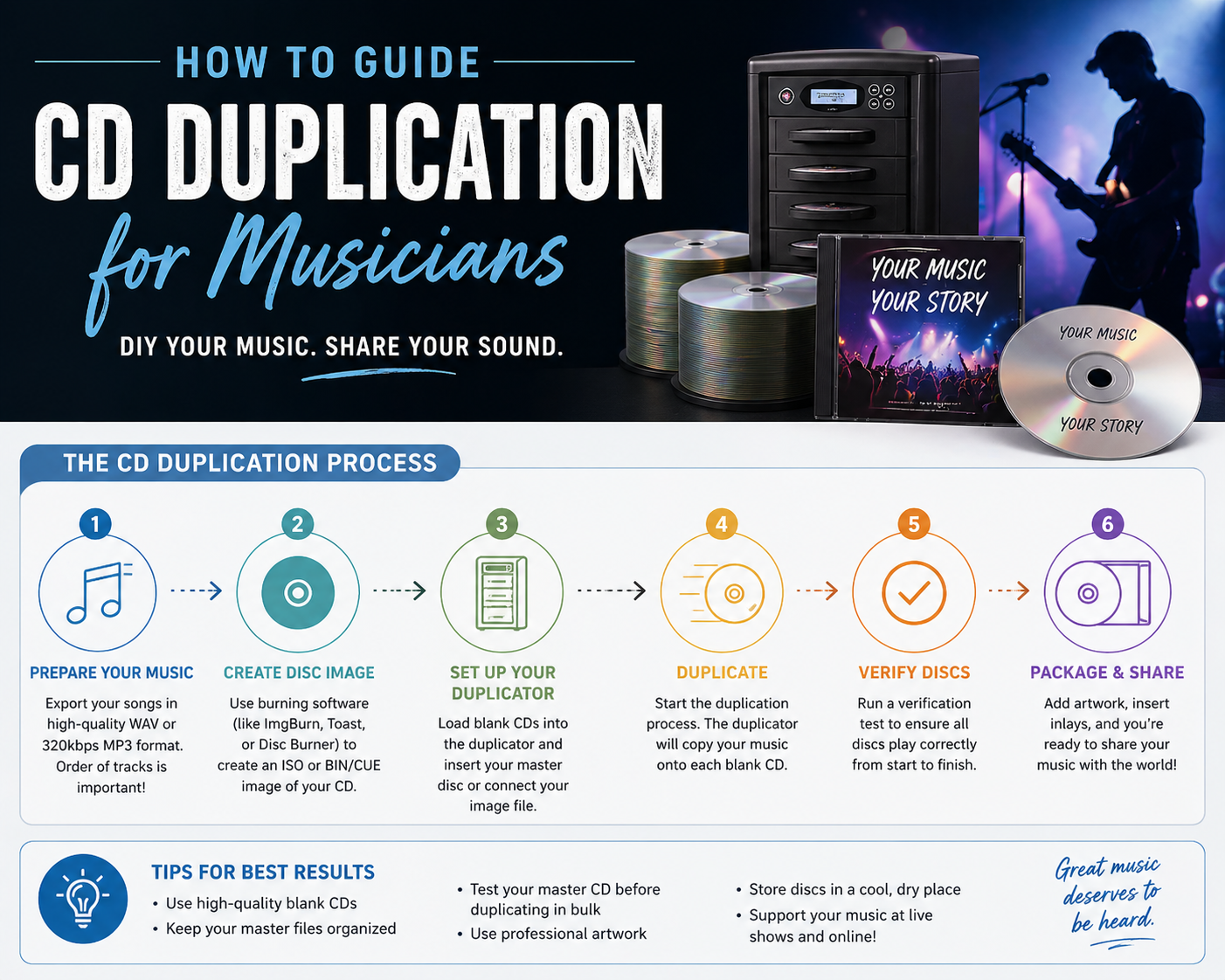
You’ve got the music done, release date in mind, and maybe a stack of references open on your laptop. Then you download a template for the disc and packaging, zoom in, and suddenly you’re staring at circles, guides, trim marks, and labels that don’t look anything like an album cover. That’s the point where a lot of first CD projects drift off course.
The good news is that templates for cd labels aren’t hard once you treat them like production tools instead of design clutter. A template tells you where the art can safely live, where print tolerances matter, and where mistakes turn into reprints. If you’re ordering a short run, that discipline matters even more because there isn’t room for sloppy setup.
I look at these files the same way I’d look at a master before duplication. If the template is right, the rest of the job moves smoothly. If the template is wrong, every later step gets more expensive.
Selecting Your Perfect CD Label Template
A short-run CD job usually starts the same way. The music is approved, the release date is close, and the first file that gets attention is the disc face. Then the packaging choice changes two days later, and now the disc art, cover, spine, and back panel no longer belong to the same release.

From the production side, that is one of the most expensive early mistakes because it creates avoidable revision rounds. Pick the package first. Then build the disc label from the matching template set so every printed piece lines up visually and technically.
Match the template to the package
A jewel case gives you the most room to work. It suits albums with lyrics, credits, session players, liner notes, or anything else that needs a front insert, tray card, and sometimes a booklet. If you want a traditional retail look, this is still the safe choice.
A printed sleeve or eco wallet strips the project down to the essentials. That can work very well for singles, promos, spoken word, church messages, and short EPs, especially if the cover image is doing the heavy lifting. The trade-off is space. You have fewer places to solve copy problems, so the design has to be disciplined.
A Digipak asks for more planning than many first-time artists expect. Panels connect across folds, and artwork that looks balanced on screen can break awkwardly once spines and hinges enter the layout. Good Digipak design keeps faces, titles, and logos away from fold stress points.
Shop-floor rule: choose the package, then download every related template for that package at the same time.
What trips up first-time CD projects
Designing the disc first and the package later causes trouble fast. Type choices drift. Colors shift from file to file. The disc ends up looking like one release, and the insert looks like another.
Generic templates cause a different problem. A layout that looks close can still have the wrong panel dimensions, spine width, or disc print area for the job you are ordering. At a duplication house, that usually means more proofing, more file fixes, and sometimes a full reset of the artwork.
Short runs feel forgiving because the quantity is smaller. Production is less forgiving. If the files do not match the package format, the job slows down just like a large order does.
A practical way to choose
Use this checklist before you start designing:
- Choose based on how the disc will be used.
Merch table sales usually benefit from a jewel case or Digipak because they feel more substantial in hand. Handouts, event giveaways, and mailers often fit sleeves or wallets better. - Match the packaging to the amount of content.
Heavy text, detailed credits, and track information need panel space. Minimal artwork usually looks better in simpler formats. - Keep the full template set together from day one.
That includes the disc face, front insert, back insert, tray card, spine, wallet panels, or any booklet pages tied to the package.
If you need a ready-made starting point, CD and jewel case templates from Atlanta Disc cover several packaging formats, which helps keep the disc art and printed pieces in sync from the start.
Understanding Bleed, Safe Zones, and Print Specs
A lot of short-run CD jobs go sideways at proof stage for one simple reason. The art looks finished on screen, but the file was not built for print. At Atlanta Disc, we see it all the time with first-time releases. The background stops at the cut line, the credits sit too close to the edge, or the disc face ignores the hub area and loses part of the design once it is printed.

What each line actually means
The bleed is the extra image area that extends past the final cut. If your artwork has a photo, texture, or solid color touching the edge, it needs to run past the trim. Otherwise, a slight cutting shift can leave a white sliver on the finished piece.
The trim line marks the intended final size. In production, it is a target. It is not a promise that every cut lands with perfect mathematical precision.
The safe zone is the area for anything you cannot afford to lose or crowd. Keep the album title, artist name, track list, legal copy, and QR code inside it. Files can be technically printable and still look amateur if text sits too close to the edge.
If the safe area feels too tight, simplify the layout. Do not solve a space problem by pushing type outward.
The print settings that matter
For raster artwork, 300 DPI is the standard starting point. That is enough resolution for photos and textures to reproduce cleanly at final size. It does not rescue bad source art, though. A low-res image pulled from social media will still print soft.
Build the file at final dimensions with the bleed included from the start. Scaling up later is one of the fastest ways to get fuzzy type, muddy details, and a proof request you did not plan on.
Set the file to CMYK before you commit to color decisions. Monitor color is brighter than printed ink, and bright blues, greens, and reds are usually where musicians get surprised. If you design in RGB and convert at the end, expect shifts.
Use this baseline:
- Resolution
Raster files should be built at 300 DPI at final size. - Bleed
Include 0.125 inch of bleed anywhere artwork runs to the edge. - Color mode
Work in CMYK for print files. - Black text
Small type should stay a clean, readable black, not a rich black mix that can soften or misregister.
How to read a CD template without second-guessing it
Disc printing has one extra constraint that catches people off guard. The center hole and hub area interrupt the composition. A layout that looks balanced in a flat square can fall apart once the middle is removed.
Check the disc face by itself for a minute. Ignore the effects and styling. Look at the guide layers and ask:
- Does the background extend fully past the printable edge?
- Is every important line of text well inside the safe area?
- Does the design still feel centered once the hub cuts through the middle?
That last point matters more than people expect. Faces, logos, and centered titles often need to shift slightly so the printed disc feels balanced as a circle, not as a square artboard.
This is the part of pre-flight that saves money. Catching a bleed or safe-zone problem now is a quick fix. Catching it after proof approval usually means revised files, lost time, and a release date that starts slipping.
How to Use Templates in Photoshop and Illustrator
The cleanest production files usually come from a boring workflow. That’s a compliment. You want a file structure that lets you edit fast, proof accurately, and export without accidentally printing the guides.

Build the file in layers
In Photoshop, place the template on the top layer and lock it. Set it so you can see the guides clearly without confusing them with the art. Keep your background image, texture overlays, typography, and logos on separate layers underneath.
In Illustrator, do the same thing, but take advantage of vectors where you can. Text, logos, line art, and solid graphic shapes stay cleaner in vector form. That’s especially useful on disc faces where small type around the edge can go soft if it’s handled carelessly.
A reliable layer stack looks like this:
- Template layer Locked and never printed in the final export.
- Background art Photos, textures, gradients, or solid fills that extend into the bleed.
- Brand elements Logos, icons, and recurring graphic devices.
- Type layer Artist name, title, credits, legal copy, and any small print.
A repeatable workflow
Start by importing the template at full size. Don’t redraw it. Don’t eyeball it. Place your background first and scale it so it runs fully through the bleed area.
Then place your text with the safe zone visible. If the design only works when text sits on the trim line, the design needs revision. Most first-time projects improve when the type moves inward and gets more room.
Here’s a useful walkthrough to watch while setting up your file:
Keep the template visible while designing, then hide or delete that guide layer before export. More than one artist has sent a beautiful cover with the cut guides still baked in.
Photoshop vs Illustrator for disc work
Photoshop is usually better for photographic art, textured backgrounds, and collage-heavy releases. If your cover leans atmospheric or painterly, it’s a comfortable choice.
Illustrator is stronger for crisp typography, logo-driven layouts, and packaging systems that need consistent alignment across multiple panels. If you’re building a disc face plus inserts plus a wallet with repeating graphic structure, Illustrator often keeps the whole set tidier.
You don’t have to choose one forever. Many strong files use both. Build or retouch imagery in Photoshop, place it into Illustrator, and finish the package there.
Designing for Different CD Packaging Types
A disc label by itself rarely carries the whole release. What people experience is the package sequence. Front cover first, then back panel, then the disc, then any inside spread or insert. If those pieces don’t relate, the project feels assembled instead of designed.

How each package wants to be designed
A jewel case is modular. The front insert, spines, tray card, and disc can each carry a distinct role. That makes it good for projects with a lot of information, but it also means you need consistency in typography and color handling.
A Digipak behaves more like a single printed object. Panoramic images, continuous texture, and left-to-right visual flow work well here. But folds can interrupt faces, titles, and centered compositions, so you need to place focal points carefully.
An eco wallet or sleeve rewards simplicity. You’ve got less real estate, so every decision has to earn its place. One strong cover image, one legible back panel, and a disc face that echoes the palette will usually outperform a crowded concept.
CD Packaging Template Specifications
| Packaging Type | On-Disc Label (Diameter) | Front Insert/Panel (W x H) | Back/Inside Panel (W x H) |
|---|---|---|---|
| Jewel Case | Use the template’s printable disc area | Use the vendor template dimensions provided for the insert | Use the vendor template dimensions provided for the tray card and spines |
| Digipak | Use the template’s printable disc area | Use the supplied outer panel dimensions in the template set | Use the supplied inside and gatefold panel dimensions in the template set |
| Eco Wallet | Use the template’s printable disc area | Use the wallet front panel dimensions in the template | Use the wallet back or inside panel dimensions in the template |
| Printed Sleeve | Use the template’s printable disc area | Use the sleeve front panel dimensions in the template | Use the sleeve back panel dimensions in the template |
Practical design trade-offs
For jewel cases, don’t treat the tray card as a leftovers panel. It’s where track list hierarchy, spine readability, and barcode or catalog details have to work cleanly. The front insert can carry the mood, but the back has to carry information.
For Digipaks, build with the fold map on screen the entire time. A panoramic image can look great flat and still fail once the folds split the composition at the wrong places.
For sleeves and eco wallets, contrast matters more than complexity. If the package is simple, weak typography shows immediately.
A quick packaging comparison helps:
- Jewel case Best when you need multiple printed components and a familiar retail presentation.
- Digipak Best when the release benefits from a continuous visual story across panels.
- Eco wallet or sleeve Best when the budget is tighter or the project calls for a lean, direct presentation.
A cohesive package doesn’t mean every panel looks the same. It means every panel looks related.
Avoiding Costly Design Mistakes
A short-run job usually goes off course in the last 10 percent. The art looks finished on your laptop, the release date is close, and someone exports a file without checking how it will behave on press. At Atlanta Disc, that is the point where a simple project turns into a delay, a remake, or a result that looks cheaper than it should.
RGB is still the mistake I see most often. Bright screen color does not print the same way, especially in blues, greens, and purples that depend on light coming through a display. Avery CD and DVD template guidance notes that many indie submissions run into RGB-to-CMYK conversion problems and that storage and curing conditions can also affect label performance. Proof the color in CMYK before approval, especially if the cover art depends on saturated tones or very dark shadow detail.
Material and ink choices have trade-offs too. A disc that will sit in a merch box, go through the mail, or get handled at shows needs different durability than a one-off promo piece. Cheap label stock, rushed adhesive application, or the wrong print method can lead to scuffing, edge lift, or bubbling. Good files cannot rescue bad production decisions.
Some mistakes are small on screen and expensive in production.
Here are the ones that keep showing up in first-time projects:
- Low-resolution artwork
Social graphics, phone screenshots, and compressed web images usually fall apart in print. Soft detail, banding, and artifacting become obvious fast on a pressed or duplicated package. - Rich black used carelessly
Large black backgrounds may need a built black mix, but small type and thin rules should usually stay 100K to avoid registration fuzz. If everything is set to rich black, small text can look dirty or slightly out of focus. - Fonts not outlined or packaged properly
Missing fonts trigger substitutions, and substitutions break line length, tracking, and hierarchy. On a tray card or disc face, even a slight reflow can put text into a trim area or hub area. - Template layers left in the final art
Fold guides, dielines, and instruction notes should never ride into the export. This sounds basic. It still happens. - Effects exported without checking flattening or transparency
Drop shadows, overprints, blending modes, and transparent PNG elements can output differently than they preview. Always inspect the final PDF, not just the working file. - Tiny text on the disc face
The disc is the smallest printed component in the package and the least forgiving. Catalog numbers, URLs, and legal copy that read fine at 200 percent zoom can become hard to read once printed around the hub.
The expensive errors are usually mechanical, not creative. A title set too close to trim. A black background built the wrong way. A logo that crosses into the hub and loses legibility. These are the fixes your duplication partner wants caught before upload, because fixing them in the file is cheap and fixing them after print is not.
Your Final Atlanta Disc Pre-Flight Checklist
It’s the night before release, your files are exported, and you’re ready to upload. That is usually when the expensive mistakes show up. At Atlanta Disc, this is the point where we want you to slow down for ten minutes and check the file like a production artist, not like the person who has been staring at the design for three days.
Pre-flight is the handoff between design and manufacturing. If the file is clean, short-run duplication moves fast. If it is not, the job stalls while someone figures out whether the problem is fixable, billable, or headed for a reprint.
The checks that matter before upload
Run one final pass on every component in the release, not just the front cover.
- Confirm color mode
Build and export in CMYK. Last-minute RGB conversion can shift skin tones, darken blues, and flatten contrast in ways that are hard to predict on screen. - Check image resolution
Raster images should be high enough for print at final size. If a background photo or logo was pulled from the web, inspect it at 100 percent before you send it. - Verify bleed
Any background, texture, or solid color that reaches the trim edge needs to extend past it. If it stops at the cut line, even slight trim movement can leave a white sliver. - Inspect safe zones
Keep titles, track names, spines, legal copy, and QR codes comfortably inside the live area. A layout can look balanced on screen and still feel cramped once it is trimmed and folded. - Review the disc hub and outer edge
Check the disc face at actual size. Text that curves around the hub or rides too close to the outer print limit often looks smaller and tighter in print than expected. - Match the release across all pieces
Compare disc art, insert, tray card, and any inside panels side by side. Artist name, album title, catalog number, and color treatment should agree everywhere.
File cleanup before export
Messy files cause avoidable delays.
- Remove guide and instruction layers
Templates, notes, fold marks, and dielines should stay out of the final export unless your printer specifically asks for them on a separate layer. - Outline fonts or package them properly
If we open your file and the font is missing, the replacement will not break kindly. It will reflow. - Name files clearly
Use straightforward names likealbum-title_disc-face_v2,album-title_tray-card_final, andalbum-title_front-insert_print. Clear file names save back-and-forth when a short-run project has multiple revisions. - Export a print-ready file and keep the working file
Send the production PDF or other requested format. Keep your layered master in case a last-minute barcode move or text correction is needed.
One last visual proof
Print a paper mockup if you can. Cut it down, fold it, and look at it in your hand. I have seen clean-looking files reveal obvious problems only after that step. Spine type gets too tight. A photo crops awkwardly. The disc label reads well on screen but feels crowded once the center hole interrupts the composition.
That quick proof is cheaper than fixing a rerun.
Before you upload to Atlanta Disc, ask one plain question: if this file prints exactly as built, are you comfortable approving every inch of it? If the answer is not a clear yes, make the adjustment now.
Frequently Asked Questions About CD Templates
Can I use Canva or another free online tool
You can, but check whether it lets you work at the correct document size, with bleed, and in a print-ready color mode. For simple sleeve art, it may be enough. For disc labels and multi-panel packaging, Photoshop or Illustrator usually gives you better control over alignment and export.
What’s the difference between a full-face and standard disc label
A full-face layout uses more of the printable surface and creates a stronger visual impact. A more standard layout leaves more open space around the hub area. The right choice depends on the printable disc spec and the look you want.
Do I need to design around the center hole
Yes. Don’t place a face, logo centerpoint, or key word where the hub interrupts it. On-screen mockups can hide this problem because your eye fills in the missing area more kindly than print does.
Can I add a QR code to my artwork
Yes, if you keep it clean, high contrast, and away from trim or fold trouble spots. On disc or package art, give it breathing room and test it from a printed proof before approval.
Should I design the disc first or the package first
Start with the whole system. Even if the cover image comes first creatively, the production file set should be built as one release package.
What if I’d rather not handle the setup myself
That’s common. If you’ve got the artwork but don’t want to wrestle with templates, file prep, or package coordination, Atlanta Disc handles short-run CD and DVD duplication, printing, and packaging, and musicians can also request template help or custom template support through its ordering process.
If you’re getting a CD project ready and want a second set of eyes before production, Atlanta Disc can help you sort out templates, packaging choices, and print-ready file prep so your short run moves cleanly from artwork to finished discs.