
How Many Songs Can a CD Hold? Your Ultimate Guide
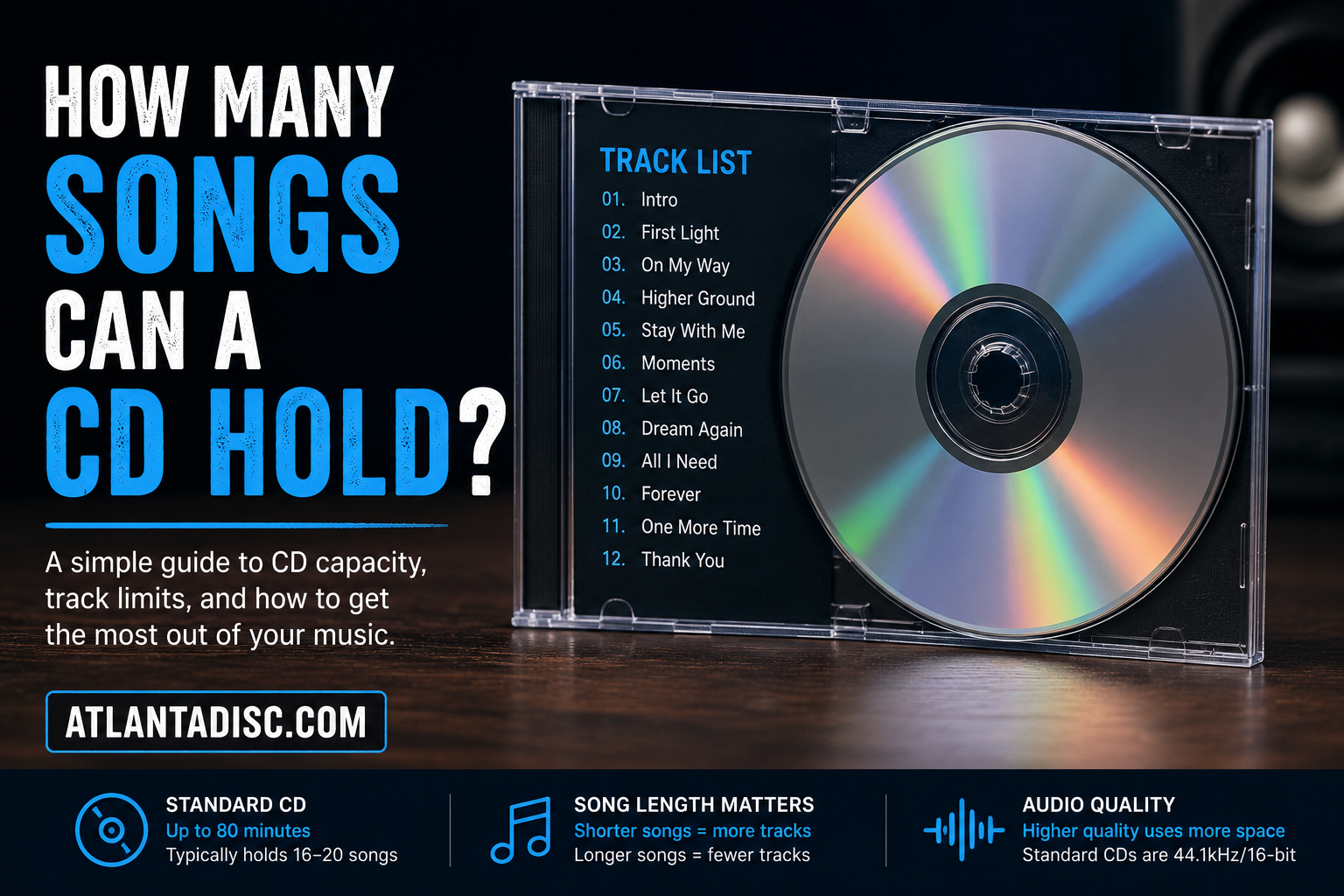
You’ve finished the mixes. The sequence feels right. The cover art is close. Then the practical question lands on your desk: how many songs can a CD hold?
That sounds simple, but it isn’t one number for every project. A CD can behave like a finished album format, or it can behave like a little storage disc for files. Those are two different jobs, and they follow different rules.
If you’re an indie artist, DJ, church media team, podcaster, or small label, this matters before you place an order. It affects your tracklist, your masters, your file prep, and even whether your listeners can play the disc in an older home stereo or a car deck. I’ve seen people assume “more compression means more songs” on a regular music CD, then get surprised when the project still runs out of room. I’ve also seen people burn hundreds of MP3s to a disc, only to learn their audience expected a normal Audio CD.
The good news is that once you separate time-based CDs from space-based CDs, the confusion clears up fast.
Your Album is Done So What Comes Next
A lot of artists hit this stage at the same time. The music is finally approved, everyone is tired of revisions, and now the release has to become a physical product. That’s where the CD question stops being trivia and starts being a production decision.
If you’ve got a rap mixtape with a long intro, skits, and a few short cuts, you might assume you can fit a huge track count on one disc. Maybe you can. Maybe you can’t. The answer depends on whether you’re making a standard Audio CD or a Data CD full of music files.
Packing for a trip offers a useful comparison. One suitcase follows a rule stating, “You get this much travel time.” The other specifies, “You get this much storage space.” If you pack for the wrong rule, you’ll run into trouble at the airport. CDs work the same way.
Practical rule: Count total runtime first if you want a CD that plays in standard CD players. Count file size first if you’re delivering MP3s or other files.
That difference affects real-world choices:
- Album release: If you want fans to pop the disc into a regular player, your project needs to fit the audio format’s time limit.
- Promo disc: If you want to hand out lots of songs in MP3 form, a data disc may hold far more tracks.
- Sermons and spoken-word projects: Long runtimes can push you toward careful track planning, or toward file-based delivery if playback devices support it.
The first question to answer
Before you ask how many songs fit, ask this:
- Where will people play it
- Do they expect tracks or files
- Is compatibility more important than quantity
That’s the fork in the road. Once you know which kind of disc you’re making, the rest gets much easier.
Audio CDs vs Data CDs The Fundamental Difference
An Audio CD is the familiar kind that plays in standard CD players. A Data CD is a storage disc that holds files, like MP3s, WAVs, or other computer data. They may look identical, but they are not packed the same way.

Audio CDs are measured in time
For a standard Audio CD, the main limit is runtime, not file size. The Red Book specification is the rulebook behind standard audio CDs. According to Acoustica’s explanation of audio CD limits, standard audio CDs introduced by Philips and Sony in 1982 are limited to a maximum of 99 tracks, and a standard 120 mm CD holds 74 minutes of stereo audio at 44.1 kHz and 16-bit depth, or about 650 MiB of data.
That means a regular album CD is more like a movie reel with a fixed running time. You can divide that time into a few long tracks or lots of short ones, but you can’t cheat the time limit by making the songs “smaller” the way you would with digital files.
If your tracks average normal song length, many artists land somewhere around a typical album-sized track count. But runtime is still the boss. A project with many short songs may fit more tracks. A project with long songs may fit fewer.
Data CDs are measured in space
A Data CD works more like a small flash drive. It doesn’t care whether a song is meant for track 1 on a retail album. It cares how much storage each file uses.
That means you can put:
- MP3 files
- WAV files
- FLAC files
- Artwork
- Lyrics PDFs
- Session notes or promo materials
on the same disc, as long as the total file size fits.
An Audio CD asks, “How many minutes of standard CD audio are on this disc?”
A Data CD asks, “How much storage space do these files use?”
Why this confuses people
People often think, “If I convert my songs to MP3, I can fit more tracks on a normal music CD.” That’s only true if you’re making a Data CD. A standard Audio CD still converts those songs into the CD audio format during authoring, and the time limit still applies.
Here’s the simplest analogy:
| Disc type | Think of it like | Main limit |
|---|---|---|
| Audio CD | A fixed-length performance slot | Time |
| Data CD | A storage box with set capacity | Space |
If your goal is broad playback in standard CD players, choose the time-based format. If your goal is quantity and your listeners have MP3-capable devices, choose the space-based format.
How File Format and Quality Dictate Song Count
Once you move into Data CDs, file format starts calling the shots. For this reason, song count can change a lot, because different file types take up very different amounts of space.

WAV takes the most room
A WAV file is uncompressed audio. It keeps the full detail, which is great for production and mastering, but it also eats disc space fast. If you load a Data CD with WAVs, you’ll fit far fewer songs than if you use MP3s.
That’s why WAV is great for delivery to a mastering engineer or archive, but not always ideal when your main goal is maximum track count on one disc.
FLAC saves space without throwing audio away
FLAC is lossless compression. It reduces file size while preserving the audio information. Imagine it as carefully folding clothes in a suitcase instead of crumpling them; you save room without leaving items at home.
Not every playback device handles FLAC the same way, though. So even if it’s efficient, you still need to think about where the listener will play the disc.
MP3 fits the most songs
MP3 uses lossy compression, which means it reduces file size by removing some audio information. The lower the bitrate, the smaller the file. The higher the bitrate, the larger the file.
Bitrate is easiest to understand with an image analogy. A low-resolution image loads fast and takes less room, but it loses detail. A high-resolution image looks richer, but the file is heavier. Audio works the same way.
According to Wikipedia’s overview of compact disc formats, the common 80-minute CD-R holds 79 minutes 59 seconds of audio or 700 MiB, and for data use that capacity can hold 120+ compressed tracks, such as 5+ hours at 128 kbps. That same source notes that over 70% of modern car stereos can play that kind of data-disc format.
The real trade-off for artists
Planning gets practical. Ask yourself what matters more:
- Maximum compatibility: standard Audio CD
- Maximum quantity: Data CD with compressed files
- Highest file quality on a data disc: WAV or FLAC, but fewer songs
- Best balance for broad modern playback: often MP3, depending on the audience
If the disc is meant to be a finished album, think like a mastering engineer.
If the disc is meant to be a file delivery tool, think like a storage manager.
A quick way to think about bitrate
Use this mental model:
- Higher bitrate means more detail, larger files, fewer songs
- Lower bitrate means less detail, smaller files, more songs
That’s why two discs with the same physical size can hold very different numbers of songs when used as Data CDs. The disc capacity doesn’t change. The file sizes do.
For promo projects, rehearsal references, sermon libraries, or DJ handout discs, that flexibility can be useful. For an official album release, many artists still want the simple experience of numbered tracks that play anywhere a regular CD can play.
A Practical Chart for Estimating CD Capacity
Here’s the quick-reference version most artists want. This chart keeps the difference between Audio CDs and Data CDs easy to see.
Estimated songs per CD
Estimated Songs Per CD (Based on a 3.5-Minute Average Song)
| CD Type / Audio Format | Capacity | Estimated Number of Songs |
|---|---|---|
| Audio CD standard | 74 minutes | About 21 songs |
| Audio CD common CD-R | 79 minutes 59 seconds | About 22 songs |
| Data CD with WAV files | 700 MiB | Fewer songs than compressed formats, exact count depends on file size |
| Data CD with FLAC files | 700 MiB | More than WAV, fewer than MP3, exact count depends on compression |
| Data CD with 320 kbps MP3 | 700 MiB | Varies by file size, fewer than lower bitrate MP3s |
| Data CD with 256 kbps MP3 | 700 MiB | Varies by file size |
| Data CD with 128 kbps MP3 | 700 MiB | 120+ compressed tracks if the files are in that range |
The first two rows are based on runtime. The MP3 row at 128 kbps comes from the compact disc reference linked earlier. The other data-disc rows are best treated as variable, because file size changes with format settings and song length.
A simple estimating formula
For Data CDs, use this:
CD capacity in MB / average song file size in MB = estimated number of songs
That gives you a rough planning number before you burn or duplicate anything.
A practical example
Say you’re a DJ with long tracks. Your songs run closer to five minutes than three and a half. If you’re making an Audio CD, your total runtime decides everything. Fewer long songs fit than short songs, even if the track count looks modest.
If you’re making a Data CD, export a few final files, check their actual sizes, and average them. Then divide the disc capacity by that average file size. That gets you much closer than guessing from track count alone.
Don’t build your project around “number of songs.” Build it around total runtime for Audio CDs and real file sizes for Data CDs.
Where artists miscalculate
The most common mistakes are simple:
- Using rough demo lengths: Final mastered versions can run longer because of fades, spoken intros, or hidden space.
- Ignoring file type: WAV and MP3 are not interchangeable in storage planning.
- Forgetting compatibility: More songs on a Data CD only helps if the listener’s player reads those files.
A quick test burn and a real runtime check can save a lot of stress before duplication.
Pro Tips for Preparing Your Project for Duplication
Capacity is only half the job. The other half is preparing the project so it duplicates cleanly and plays back the way you intended.

Lock the tracklist before anything else
Don’t treat sequencing like an afterthought. The track order affects pacing, total runtime, and the final disc authoring.
For an Audio CD, confirm:
- Final song order: Don’t send a “close enough” version if you’re still swapping track positions.
- Actual rendered lengths: Use the exported files, not session estimates.
- Transitions and spacing: Tiny gaps add up. So do long fades and spoken interludes.
If the runtime is tight, trim silence carefully instead of forcing the disc past what standard playback expects. A clean, reliable disc beats an overloaded one every time.
Prep masters for CD playback
A CD master needs to translate well across different players, not just in your studio. That means watching peaks, spacing, and consistency.
A safe habit is leaving a little headroom so the master doesn’t flirt with digital clipping. If your files are too hot, some playback systems can make the problem more obvious than your monitors did.
Here’s the practical checklist I’d use at the bench:
- Use final masters only: Not mix references, not streaming rips, not session bounces with accidental clipping.
- Check starts and ends: Make sure songs don’t chop off intros or leave unwanted dead air.
- Listen straight through: At least once. Top to bottom. Preferably on more than one player.
- Name files clearly: Simple track numbers and titles reduce authoring mistakes.
Deliver the right file type
For a standard Audio CD, the usual expectation is 16-bit, 44.1 kHz WAV. That matches the CD audio format and avoids unnecessary conversion surprises.
If you’re building a Data CD, file choice depends on the project goal. MP3 may make sense for a promo handout. WAV may make sense for an archive or production library. The key is deciding that on purpose, not by accident.
A duplication problem often starts upstream. Wrong exports, unclear file names, and last-minute track swaps cause more trouble than the disc itself.
A short walkthrough can help if you’re checking your prep workflow before delivery:
Match the disc to the release
The smartest projects line up the format with the audience.
A polished album for fans who expect normal playback usually points to an Audio CD. A broad promo handout for listeners using computers or MP3-capable car stereos may point to a Data CD. A sermon series or spoken-word archive may depend on whether convenience or compatibility matters more.
Then think about packaging in the same practical way. A formal retail-style release feels different from a simple giveaway disc. The format, artwork, and packaging should all tell the same story.
Making the Final Choice for Your Music Release
So, how many songs can a CD hold?
The honest answer is still, it depends on the kind of CD you’re making.
If you want universal, familiar playback in standard CD players, think in minutes, not megabytes. Your runtime determines capacity. If you want to fit a much larger number of songs as files, think in storage space, file format, and bitrate. That’s where a Data CD can carry far more music, but only for listeners with compatible devices.
For artists, the best choice isn’t the one that holds the biggest number. It’s the one that matches the release. Album for sale. Promo disc. Sermon archive. Mixtape handout. Each one has a different “right” answer.
Get the format right, prep your files carefully, and your duplication run gets much smoother. That’s the difference between a disc that just exists and a disc that works for the people receiving it.
If you’re ready to turn finished audio into a professional short-run release, Atlanta Disc can help you choose the right CD format, packaging, and duplication setup for your project. Whether you’re pressing an album, a mixtape, sermons, or promo discs, their team can walk you through the practical details so your files become a clean, reliable final product.